Morse code is a perfect method for a quadriplegic, someone with little or no ability to move. A person just needs to be able to activate a switch or two (such as Sip-and-Puff).
Many people with physical disabilities are not able to use a computer keyboard or mouse. This severely limits their access to the educational, recreational and career opportunities provided by computer technology. Morse code has long been recognized as an effective computer access method for people who are not able to use a keyboard or mouse.
Morse code systems use a binary input method that represents characters and commands as a series of dots and dashes. For example, a dot followed by a dash indicates the letter A, a dash followed by three dots represents B, etc. If a single switch is used, a dash is differentiated from a dot by holding the switch closed for a longer period of time. In two-switch Morse code, one switch enters dots while the other enters dashes. Three-switch input is also available for people who cannot reliably control their movements. Morse code is quite efficient — speeds of 15 to 30 words per minute are common, and speeds in excess of 60 words per minute can be attained.
Morse code has a number of advantages over other alternate computer access strategies. It is usually faster, requires less fine motor control, and is less likely to produce fatigue. Perhaps its most important advantage is its ability to become a sub-cognitive process. After using it for a period of time, the user no longer thinks about the codes they’re entering — the same process used by touch typists. Morse code is the only alternate access method that can become sub-cognitive.
I have used sip and puff to enter Morse codes to access computers since 1989 when I became a quadriplegic, paralyzed from the neck down and dependent on a ventilator to breathe. It is an easy-to-use method for someone with limited head movement and difficulty speaking.
I first used ezMorse in DOS on a PC. In 1994 I began using the AdapTek Interface Adap2U Adaptive Input Interface System. With the Adap2U I can enter every keyboard key, move the mouse, and click the mouse buttons. Since the Adap2U is a hardware interface it can be used with any operating system. The computer sees it as a keyboard and mouse.
I also use a Morse code input device called Tandem Master (aka Morse-2-USB controller). Using 2 switches (sip and puff or two head switches, for example) the user can input Morse codes for all keyboard keys, move the mouse (left, right, up, down), and click the mouse buttons. It is automatically recognized as USB HID keyboard and mouse by any modern computer with a USB port — no additional software or setup needed.
I am now using AeroMorse, an open-source Morse code keyboard and mouse I directed and that runs on an Adafruit ESP32-S3 Feather. It connects by USB-C, needs no drivers, and works with sip-and-puff or switches. AeroMorse is my daily device.
You can see how I use sip and puff Morse code in these videos:
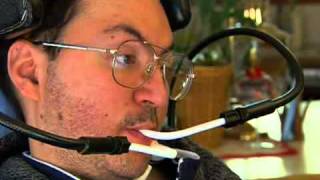
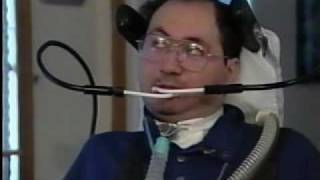
“Don’t you get out of breath?”
No — because it isn’t breathing. The tube is closed at the far end, where it meets the sensor, so no air travels through it. Nothing is drawn into your lungs and nothing is blown out.
A sip or a puff is a small change of pressure made with the mouth: the cheeks and tongue, the way you would start to sip a drink through a straw, or hold back a puff of air behind your lips. Your breathing carries on as usual while you do it. Jim is dependent on a ventilator to breathe and works his AeroMorse all day.
And it takes very little. As supplied, the sensor responds to a change of about 2 hPa — the pull it takes to raise a drink about 2 cm, less than an inch, up a straw. Most people use far more effort than is needed at first, and find it gets lighter and quicker with practice.
Groups
The device has four groups. The active group determines which code table is used. Group 0 is always checked first, regardless of the active group — its 8-symbol patterns are available at all times. Because each group has its own code table, the same short pattern can mean different things — .- is a 🖱︎ left click in the mouse group and a Letter
A
Group 0 — Always Available (Group Switch)
These 8-symbol patterns work in any group and jump directly to the named group. The codes use a “count of trailing dashes” scheme: 8 dots = Group 1, then add trailing dashes to reach the higher groups.
| Pattern | Trailing dashes | Destination |
|---|---|---|
........ | 0 | Group 1 — Keyboard |
....---- | 4 | Group 3 — Macros |
-------- | 8 | Group 2 — Mouse / Shortcuts |
Group 1 — Keyboard
The default group after power-on. Provides letters, numbers, punctuation, function keys, navigation keys, and modifier keys.
Two non-standard patterns free up codes for high-frequency control keys:
| Letter | Standard ITU | AeroMorse | Freed code used for |
|---|---|---|---|
| M | -- | ---- | -- |
| C | -.-. | ---. | -.-. |
Letters
| Letter | Pattern | Letter | Pattern |
|---|---|---|---|
| A | .- | N | -. |
| B | -... | O | --- |
| C | ---. (non-std) | P | .--. |
| D | -.. | Q | --.- |
| E | . | R | .-. |
| F | ..-. | S | ... |
| G | --. | T | - |
| H | .... | U | ..- |
| I | .. | V | ...- |
| J | .--- | W | .-- |
| K | -.- | X | -..- |
| L | .-.. | Y | -.-- |
| M | ---- (non-std) | Z | --.. |
Numbers
| Number | Pattern | Number | Pattern |
|---|---|---|---|
| 1 | .---- | 6 | -.... |
| 2 | ..--- | 7 | --... |
| 3 | ...-- | 8 | ---.. |
| 4 | ....- | 9 | ----. |
| 5 | ..... | 0 | ----- |
Punctuation
| Character | Pattern | Character | Pattern |
|---|---|---|---|
+ plus | -...- | ! exclamation mark | .-.... |
- minus / hyphen | .---. | @ at sign | ---..- |
= equals | ---.- | # hash / number sign | ..---. |
* asterisk | -..-- | $ dollar sign | ..---- |
. period | .----- | % percent | ...-.- |
, comma | -..... | ^ caret | -...-- |
: colon | .----. | & ampersand | .---.. |
; semicolon | -....- | ? question mark | -.---- |
) close parenthesis | ...--- | / forward slash | ....-- |
( open parenthesis | ---... | \ backslash | ----.. |
] close square bracket | -..--- | | vertical bar / pipe | ....-. |
[ open square bracket | .--... | _ underscore | ----.- |
} close curly brace | --..- | " double quote | ...--. |
{ open curly brace | ..--. | ' single quote / apostrophe | ..-... |
< less than | --..-- | ` backtick / grave accent | --.--- |
> greater than | ..--.. | ~ tilde | ---.-- |
Function Keys
| Key | Pattern | Key | Pattern |
|---|---|---|---|
| F1 | --.---- | F7 | ----... |
| F2 | --..--- | F8 | -----.. |
| F3 | --...-- | F9 | ------. |
| F4 | --....- | F10 | ------- |
| F5 | --..... | F11 | .------ |
| F6 | ---.... | F12 | ..----- |
Navigation & Editing Keys
| Key | Pattern |
|---|---|
| Arrow Up | .-..- (au) |
| Arrow Down | .--.. (ad) |
| Arrow Left | .-.-.. (al) |
| Arrow Right | .-.-. (ar) |
| Home | ....... (sh) — 7 dots |
| End | ...-... (sb) |
| Page Up | .....- (su) |
| Page Down | ...-.. (sd) |
| Enter | .-.- |
| Escape | --.... (gs) |
| Delete | -.--.. (kd) |
| Insert | -.-.. (ki) |
| Backspace | -- |
| Space | ..-- |
| Tab | ---..-. (of) |
| Shift+Tab | ---.-. (or) |
Modifier Keys (Sticky)
Modifier keys are sticky: press the pattern once to arm the modifier (shown on display). The next key fires with that modifier held, then it auto-releases. Press again while armed to disarm without firing.
| Modifier | Pattern |
|---|---|
| Left Control | -.-. |
| Left Shift | --...- |
| Left Alt | --.-- |
| Left GUI (Win/Cmd) | .--.-- |
| Caps Lock | -----. |
| Scroll Lock | --.-.. |
| Num Lock | ---...- |
| Print Screen | --.--. |
Repeat
| Action | Pattern |
|---|---|
| Toggle repeat | ..-.. |
Repeat re-fires the last action continuously until toggled off. After a key, combo, or text, that action fires every 40 ms. Any new sip or puff while repeating immediately stops it.
Group Switch
| Action | Pattern |
|---|---|
| Switch to Group 2 (Mouse) | ...-. |
Group 2 — Mouse & Shortcuts
Mouse movements follow the numeric keypad layout: directions map to the same positions as numpad 7–9, 4–6, 1–3. Each cardinal direction has a short pattern (2–3 symbols) and a large-step pattern (5 symbols). The same patterns used for typing in the keyboard group are reused here for cursor movement, clicks, and shortcuts.
An easy way to remember them: picture a number keypad. The large-step code for each direction is simply the Morse code for the number on that key — 8 (---..) is up, 2 (..---) is down, 4 (....-) is left, 6 (-....) is right, and the corner numbers 7, 9, 1 and 3 are the diagonals. If you know the numbers in Morse, you already know the mouse.
🖱︎ Mouse Movement
| Direction | Short pattern | Large pattern |
|---|---|---|
| 🖱︎ ↑ Up | -- | ---.. |
| 🖱︎ ↓ Down | --- | ..--- |
| 🖱︎ ← Left | .. | ....- |
| 🖱︎ → Right | ... | -.... |
| 🖱︎ ↖ Up-Left | — | --... |
| 🖱︎ ↗ Up-Right | — | ----. |
| 🖱︎ ↙ Down-Left | — | .---- |
| 🖱︎ ↘ Down-Right | — | ...-- |
| 🖱︎ ↑ Scroll Up | — | .....- |
| 🖱︎ ↓ Scroll Down | — | ...-.. |
Mouse speed is controlled by three modes:
| Mode | Speed multiplier | How to activate |
|---|---|---|
| Normal | ×2 | Default; also what you return to when mslow or mfast is sent a second time |
| Slow | ×1 | mslow, pattern --.. — the letter Z: think zoom in for fine moves (send again for Normal) |
| Fast | ×3 | mfast, pattern ..-. — the letter F, for fast (send again for Normal) |
Mouse Buttons
| Action | Pattern |
|---|---|
| 🖱︎ Left click | .- |
| 🖱︎ Right click | .-- |
| 🖱︎ Double-click left | ..- |
| 🖱︎ Double-click right | ..-- |
| 🖱︎ Drag: hold the left button / let it go | -. (see Drag below) |
Drag
Dragging with a normal mouse means press the button, move, let go. On AeroMorse the drag pattern -. does the pressing and the letting go for you: send it once and the left button is held down; send it again and the button is released. Everything you do with the mouse in between happens with the button held.
How to drag something:
- Move the pointer onto the thing you want to drag — a window’s title bar, a file, a scrollbar’s sliding block, the start of some text.
- Send
-.— the button is now held. The status row shows DRAG. - Move the pointer to where you want it to go, with the normal movement patterns. Repeat (
.) works here too, for a long glide. - Send
-.again — the button is released and the thing is dropped. DRAG disappears from the status row.
What it is for:
| To do this | Grab here (step 1) | Then move |
|---|---|---|
| Move a window | its title bar | to the new place |
| Resize a window | its edge or corner | outward or inward |
| Move a file or icon | the file or icon | onto the folder or spot |
| Select text | just before the first character | to just after the last |
| Select several files | an empty spot beside them | across them (draws a box) |
| Scroll with a scrollbar | the sliding block | up or down |
| Move a slider | the slider knob | along the track |
Good to know:
- Use small steps near the end. Slow speed (
--..) makes it much easier to stop exactly where you want before releasing. - Always finish with
-.. Until you do, the computer believes the button is still pressed and anything the pointer passes over may be selected or moved. If the pointer seems to be selecting things on its own, look for DRAG on the status row and send-.. - Changing group does not release the button. The drag is still on when you come back to the Mouse group.
- A click ends the drag. Sending a left click while DRAG is showing simply lets the button go — text you highlighted by dragging stays highlighted. A click with the other button lets the held button go and then makes that click in full.
- To cancel a drag in most Windows programs, press
Escape (--....) before releasing, then send-..
Repeat
| Action | Pattern |
|---|---|
| Toggle repeat | . (numpad 5) |
| Toggle repeat (alternate) | ..-.. |
Repeat re-fires the last action continuously until toggled off. After a mouse move, the cursor glides smoothly using pixel-accurate time-based interpolation at 40 ms intervals. After a key, combo, or text, that action fires every 40 ms. After switching groups, repeat is cleared — you must make a mouse move before repeat will activate in Group 2. Any new sip or puff while repeating immediately stops it.
Other Controls
Arrow & Keypad Keys
Group 2 also provides arrow keys and a full numeric keypad, using the same patterns as Group 1:
| Key | Pattern |
|---|---|
| Arrow Up / Down / Left / Right | same as Group 1 |
| Keypad 0–9 | — (see morse_map.py) |
| Keypad Enter | .-.- |
| KP ÷ KP . | same patterns as Group 1 text equivalents |
| Zoom in ( | -...- |
| Zoom out ( | .---. |
| Application (context menu) | ----.. |
Page Scroll
A scrollbar track click pages or line-scrolls depending on the app; these keys page in almost any app regardless of cursor position — usually the least effort for moving through a long document.
| Action | Pattern | Effect |
|---|---|---|
-.. | Scroll down one full page | |
-.- | Scroll up one full page | |
....... | Jump to the top of the page or the start of the line — the same code as in the Keyboard group |
Windows Shortcuts
| Pattern | Shortcut | Action |
|---|---|---|
..... | Task View | |
----- | Switch windows | |
--..-- | Release mouse capture from VM | |
---..-. | Tab | |
--.... | Escape | |
--..... | Refresh | |
-.--.. | Delete (same code as in the Keyboard group) | |
-.-.-. | Calculator key | Opens the Calculator |
Modifier Keys (Right-side, Sticky)
Same patterns as Group 1 left-hand equivalents, but send right-hand modifier keycodes.
| Modifier | Pattern |
|---|---|
| Right Control | -.-. |
| Right Shift | --...- |
| Right Alt | --.-- |
| Right GUI (Win/Cmd) | .--.-- |
Group Switch
| Action | Pattern |
|---|---|
| Switch to Group 1 (Keyboard) | ...-. |
Group 3 — Macros
The same patterns used for letters in the keyboard group are reused here to fire macro phrases — so the same muscle memory that types a letter also triggers a macro. Edit the entries in morse_map.py to set your own phrases. Some example entries are pre-filled:
| Pattern | Letter equivalent | Default macro |
|---|---|---|
.- | A | name |
-... | B | address |
---. | C | phone |
. | E | |
| all other letter patterns | D, F–Z | empty — fill in |
Numbers 0–9 and Enter / Backspace work the same as in Group 1.
-
TandemMaster — Morse-2-USB (M2U) hardware interface
The TandemMaster Morse-2-USB (M2U), designed and used by Tania Finlayson (Kirkland, WA), is a compact hardware device (3¼″ × 2¼″ × ¾″, 1.7 oz) that converts Morse code input into standard USB keyboard and mouse output. It connects via a single mini-USB cable — no external power or driver installation required — and appears to the host as a standard USB HID keyboard, mouse, and removable storage drive. Compatible with Windows XP or newer, Mac OS, and Android (via OTG cable).
Two adaptive switches connect via a 1/8″ (3.5 mm) stereo jack: one for dit, one for dah. An optional 1/8″ speaker jack provides audio feedback with software-controlled volume. Five menus organize Morse functions: Menu 0 (always-available base commands such as speed and volume), Menu 1 (keyboard, default), Menu 2 (mouse movement and clicks), and Menus 3–4 (user-definable). Built-in word prediction draws from a vocabulary of up to 1,820 words (800 built-in plus up to 1,020 user-added), and pre-defined macros for common phrases are stored in ROM. All code patterns, timing, tones, macros, and vocabulary are fully customizable via an editable MCONFIG.INI text file stored on the device’s onboard SD memory chip.
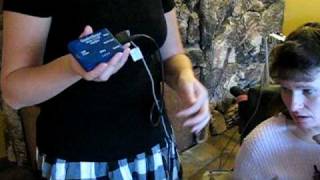 Setting up the TandemMaster Morse Code Device — Part 1Ken Finlayson IAM
 Setting up the TandemMaster Morse Code Device — Part 2Ken Finlayson IAM
 -
ATMakers — AirTalker — open-source sip/puff Morse interface (CircuitPython)
The AirTalker, an open-source project by ATMakers, is a sip/puff Morse code to keyboard/mouse interface inspired by the discontinued Adap2U. It runs on CircuitPython on a supported microcontroller (such as an Adafruit ItsyBitsy M4). A pressure sensor detects sip and puff inputs, translates Morse code patterns into USB HID keyboard and mouse output, and appears as a standard USB device — no drivers required. All hardware designs, firmware, and a 3D-printable enclosure are freely available.
- Sip And Puff Interface by atmakers — Thingiverse
- CircuitPython Powered Sip and Puff with ST LPS33HW Pressure Sensor
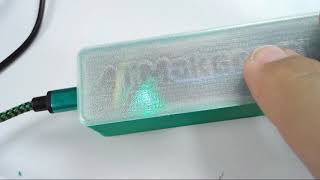 ▶ATMakers Sip and Puff Enclosure DesignATMakers
 ▶AirTalker — Show & Tell 2/27/2019Adafruit
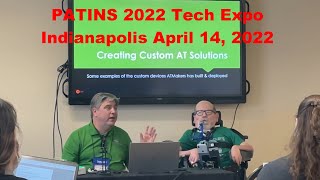 ▶Custom AT SolutionsPATINS 2022 Tech Expo
 -
AeroMorse — open-source Morse code keyboard and mouse — sip-and-puff or switches (inspired by AirTalker)
AeroMorse is a USB HID keyboard and mouse you operate with Morse code — by sip-and-puff, or with one or two switches. A short sip is a dot; a short puff is a dash. It connects by USB-C, needs no drivers, and works on Windows, macOS, Linux, iPadOS, Android, and ChromeOS. The standard build is two small Adafruit boards and one cable, with no soldering, for about $42 in parts.
It is an open-source project directed by Jim Lubin, a ventilator-dependent quadriplegic who has used Morse code for computer access since 1989 — it is his own daily device. Inspired by AirTalker, it was built with CircuitPython on an ESP32-S3 Reverse TFT Feather. Jim is the user and project lead; every design decision is his. The firmware and documents are written by Claude (Anthropic) under his direction, through Claude Code.
-
MorseKey — open-source Morse code keyboard and mouse on Adafruit Trinkey (SAMD21)
MorseKey is an open-source CircuitPython project by Jim Lubin that turns an Adafruit Trinkey into a compact Morse code input device. The Trinkey plugs directly into a USB port and presents as a standard HID keyboard and mouse — no drivers required.
-
AceCentre — morAce — open-source Bluetooth Morse code input
morAce, by AceCentre (UK), is open-source firmware for Bluetooth-enabled microcontrollers that converts switch presses into Morse code and sends the resulting keystrokes and mouse movements wirelessly to any BLE (Bluetooth Low Energy) compatible device — phones, tablets, or computers. No USB cable or drivers required on the receiving device.
-
Gboard — Google Keyboard Morse code (Android & iOS)
Google’s Gboard keyboard includes a built-in Morse code input method for Android and iOS. On Android it is accessible through Accessibility settings; on iOS it is available in the Gboard app. Users enter dots and dashes via two on-screen buttons or hardware switches (via Switch Access on Android), and the keyboard translates the patterns to text. A Circuit Playground Express can also serve as a hardware Morse switch interface for Gboard.
Discontinued
These devices may still be available or in use:
-
AdapTek Interface Adap2U Keyboard and Mouse Emulator System
The Adap2U, by AdapTek Interface (Kirkland, WA), is a hardware keyboard and mouse emulator for IBM PC/AT compatible computers. It plugs into the keyboard port and is completely transparent to the computer — no special software or TSRs required; any standard software works as-is. An optional serial port connection adds mouse emulation.
Input is through up to three switch jacks plus a variety of pointing devices (serial mouse, head pointer, joystick, touch screen, trackball). Input methods include user-defined Morse code (up to 3 switches), on-screen scanning (1–3 switches), and serial input devices. The unit has its own dedicated Hercules-compatible monochrome monitor that displays fully customizable “Menus” of keys without interfering with the main screen. Key layouts, timing, and all switch functions are configured using the included AUEdit software and can be changed at any time.
-
Darci Too Keyboard and Mouse Emulator
The Darci Too, by WesTest Engineering Corporation, is a hardware interface that connects via serial port (RS-232) and allows full keyboard and mouse access using adaptive switches. It uses a Morse-based code system and supports single or dual switch input, including sip/puff, chin, and other switch types. As a hardware device it works transparently with all software.
-
Darci USB Keyboard and Mouse Emulator
The Darci USB, by WesTest Engineering Corporation, is a hardware interface that connects via USB port and provides full keyboard and mouse access using adaptive switches. Up to three switches can be connected via 3.5 mm (1/8″) jacks, supporting sip/puff, chin, tongue, eye blink, and other switch types. Input uses the Morse/Plus code system, a modified Morse code that covers all keyboard keys and mouse commands. A setup program configures switch timing, repeat behavior, audio feedback, and custom code sets (CodeMaker). Compatible with Windows 98, ME, 2000, and XP.
-
Compusult Jouse — joystick-based sip/puff mouse with Morse code capability (three generations)
The Jouse family, by Compusult Limited (Mount Pearl, Newfoundland, Canada), is a series of mouth-operated joystick devices that act as a computer mouse for people with disabilities. A mouthpiece and sip/puff tube are mounted on an adjustable swing-away arm clamped to the desk. Tilting the mouthpiece moves the cursor; a puff is a left click, a sip is a right click, and a double puff is a double click.
Jouse (2002) — The original model connects via a serial port and includes a separate battery-powered control unit. A bite bubble on the mouthpiece toggles between Mouse mode and Morse mode; in Morse mode, sip and puff enter dots and dashes through third-party Morse software. Cursor speed is adjusted with a knob on the control unit.
Jouse2 (2008) — Upgraded to USB, eliminating the need for external power, drivers, or serial port. Built-in Morse code text entry added (supporting Morse 2000, Darci USB, EZKeys, EZ Morse, and JoyWrite code sets), with two-tone audio feedback and a volume control. Added a dwell cursor option (0.25–3 seconds, 8 stages), adjustable sip/puff sensitivity, sip/puff repeat (one long sip/puff = multiple inputs), and two 1/8″ switch jacks for alternative input. Self-calibrating center position at start-up. Compatible with Windows, macOS, and Linux.
Jouse3 (2017) — Expanded beyond computers to support tablets and other USB devices, including iOS (Switch Control mode), Android, Linux, Unix, macOS, and Windows. Added external switch control connectors for operating external switch-enabled devices. Optional wheelchair mounting via Super Clamp. Variable-friction arm and updated desk mount replaced the earlier clamp. Dwell cursor simplified to four stages (1–2.5 seconds). Built-in Morse code text entry was removed in this generation.
-
ezMorse for Windows 95/98
Morse code is one of the most efficient alternative computer access methods. EzMorse is based on a modified military Morse code system where dots and dashes are combined to form codes representing all the characters on the keyboard. EzMorse is most effectively used with a dual switch where one switch enters a dot and the other, a dash. No previous knowledge of Morse code is necessary to start using ezMorse: the user learns as they go. It takes the average user about four hours to memorize the codes for the alphabet. Typing speeds of up to 35 words per minute are not uncommon for Morse code users.
Other Projects
- EasyMorse — A lightweight Morse code library for use with adaptive switches in open-source AT projects.
- Why Morse?
- MorseLink Connector
- MorseWriter — System tray app to interpret one or two key presses in Morse and convert them to the key equivalent.
- Morseall — A Morse Code user interface for Linux.
- The Grid Morse Code
- tworsekey — A tweeting Morse telegraph — Google Project Hosting.
- Android GBoard Morse Code Control with Circuit Playground Express — No soldering required!
- Morse Keyboard with the Circuit Playground Express
- Adaptive Design’s Morse Code for GBoard Hardware Interface Pack
- Swifty, USB Switch Interface — the Adafruit TRRS Trinkey is a cheaper alternative
- RJ Cooper ability switches
- Switched Toys — Switch Buttons
- Origin Instruments Sip/Puff Switch (Head Mounted)
- Makers Making Change — Sip and Puff Switch (Analog)
- Enabling Devices — Capability switches that allow the physically challenged user to activate devices in their environment.
- Computer Accessibility Products
DIY Switches
- Adafruit TRRS Trinkey — USB HID Assistive Technology
- Snap-on Enclosure for Adafruit TRRS Trinkey
- Adafruit TRRS Trinkey — A Trinkey for assistive technology hackers and creators.
- Using the TRRS Trinkey as an Assistive Technology Device — Mouse and keyboard emulator with Switch Control for iOS and Android.
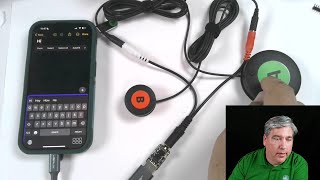 ▶Adafruit TRRS TrinkeyAdafruit
 - usb-paddle — Adaptor to make your Iambic Paddle a USB keyboard input.
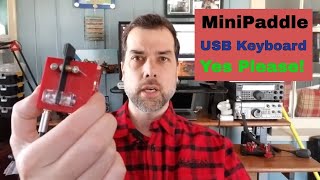 ▶Morse Code USB Keyboard Adapter — Pt 1usb-paddle
 ▶Morse Code USB Keyboard Adapter — Pt 2Modify, build, upload code
 - FAIO — Feather All-in-One Switch
- FAIO Multiplexer Switch — Open-source AT wing for Adafruit Feather boards enabling those with limited hand movement to use adaptive switches in multiple input modes.
- Adafruit MPRLS Ported Pressure Sensor Breakout — 0 to 25 PSI
- Adafruit LPS33HW Water Resistant Pressure Sensor — STEMMA QT
- DIY Sip/Puff Switch
-
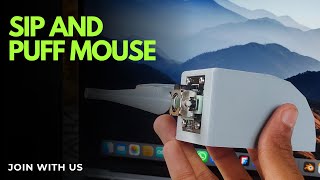 ▶Sip and Puff Mouse | Assistive Technology for Disabled UsersFINITE INTELLIGENCE
 - DIY Accessibility Switch — Arduino build — @brett.tech on TikTok

Modern Morse Code in Rehabilitation and Education:
New Applications in Assistive Technology
by Thomas W. King (Paperback)
Morse Code Sites
Papers & Articles
- Experiments with Google Hello Morse — AI and Chrome experiments inspired by Morse code on Android Gboard.
- Making Morse code available to more people on Gboard
- Morse 2000 Worldwide Outreach — Promotes research in and use of Morse Code in rehabilitation and education.
- Morse Code Demystified: A Powerful Alternative for Access to AAC and Computers — CSUN 2003
- Unusual Access Methods — Two-Switch Morse Code — CSUN 2004
- Using Morse Code As A Selection Technique For Beginning And Advanced Users — CSUN 1998
- Morse Codes for Computer Access
Tip: Cheap puff tubes!
I use disposable “puff tubes” for my sip and puff wheelchair and adaptive keyboard/mouse system. After some research I found that what accessablity sites call “puff tubes” are what dentists call Saliva ejectors.

Papers available online — all focused on Morse code as a computer access method for people with disabilities.
Last Modified: Saturday, 17-Oct-2026 22:59:23 PDT